Touch screen billing software your cashier works by finger
Big buttons, an on-screen keypad, quick keys for loose items, and a till locked to billing and returns — on any Windows touch terminal, with the same GST invoicing, stock and books as the rest of Orbit.
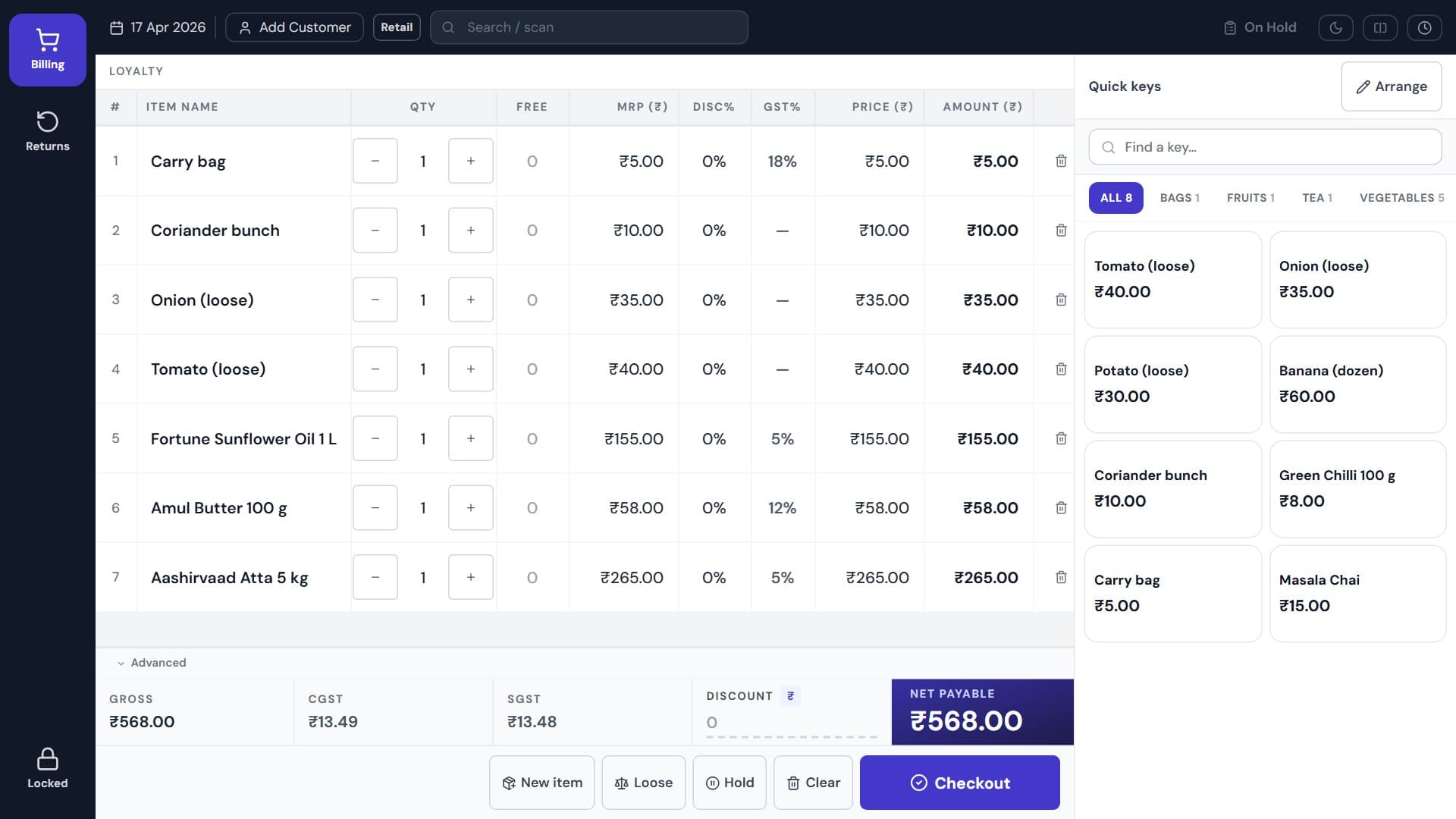
Built into Orbit
Everything a touch till needs, switched on per terminal
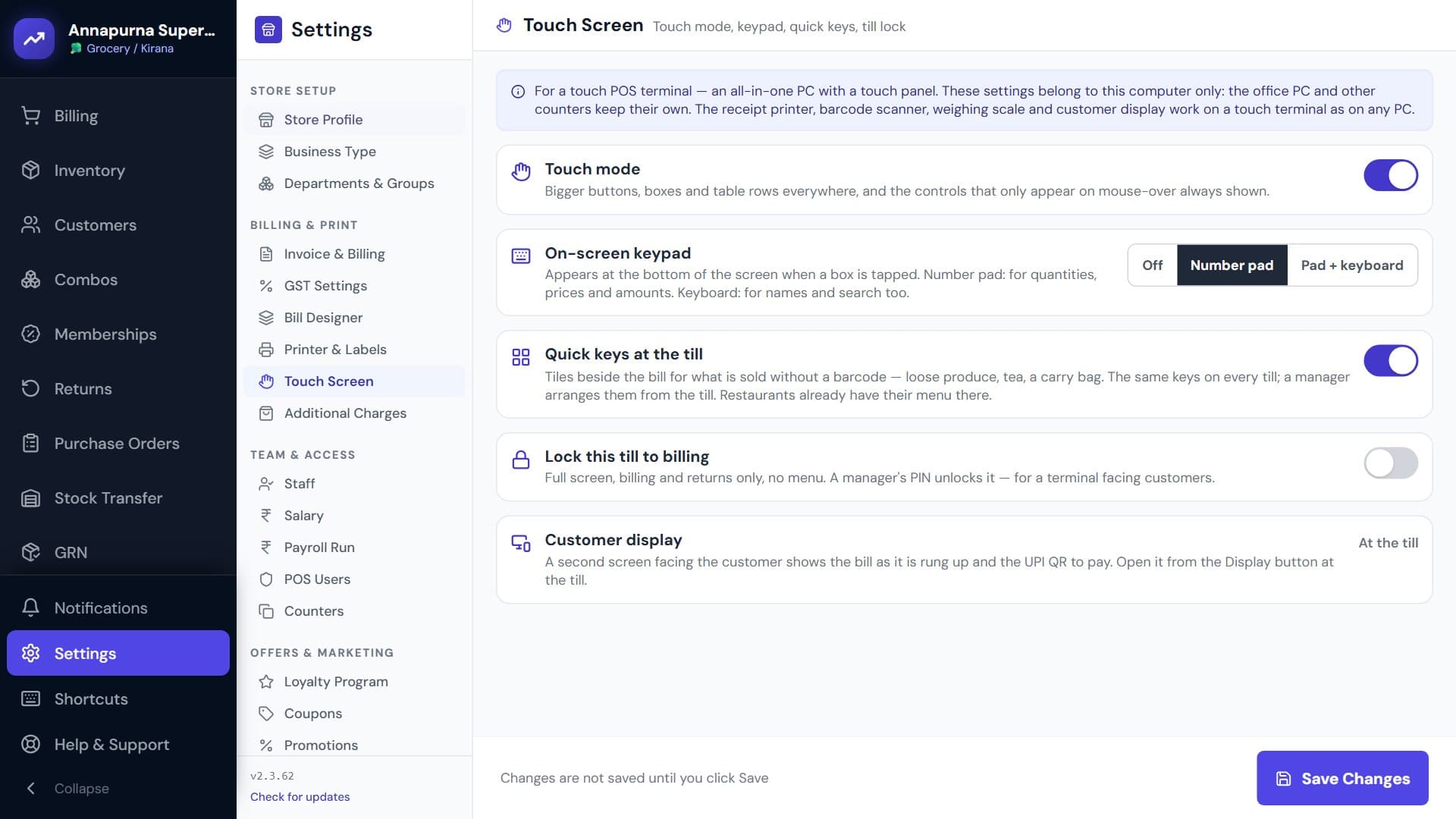
No separate touch edition and no extra licence. Turn it on in Settings → Billing & Print → Touch Screen on the till that has a touch screen.
Touch mode
Bigger buttons, boxes and table rows on every screen, sized for a finger. Controls that a mouse would reveal on hover are always shown, so nothing is hidden from a cashier who cannot hover.
On-screen keypad
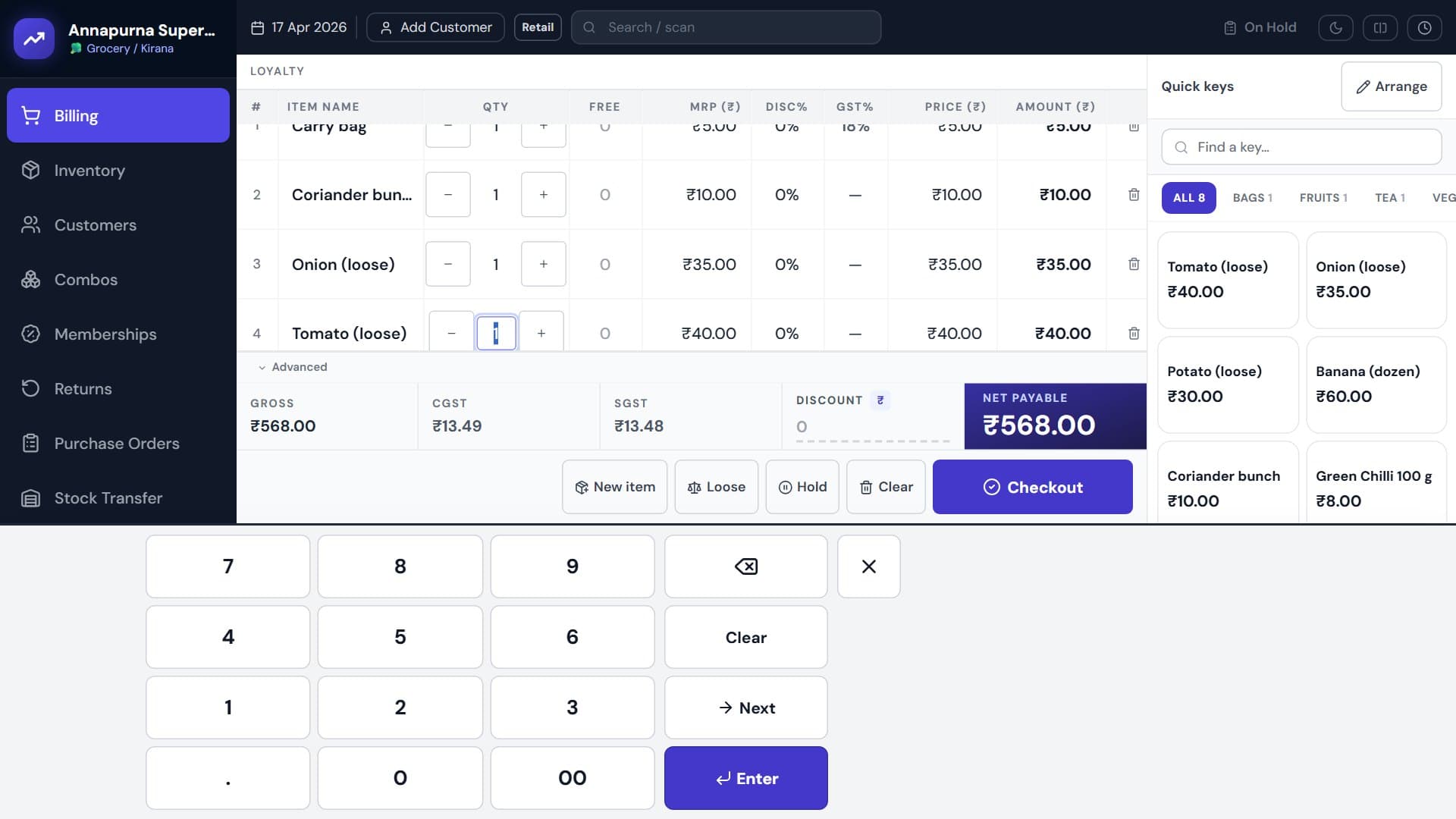
Tap a box and a keypad rises from the bottom of the screen. A number pad for quantity, price and amount tendered, or a full keyboard for customer names and product search. No physical keyboard needed at the counter.
Quick keys beside the bill
Tiles for what you sell without a barcode — loose vegetables, a carry bag, tea, a gift wrap. One tap adds it to the bill. The same keys appear on every till, and a manager arranges them from the till itself.
Till locked to billing and returns
Full screen, with billing and returns and nothing else — no menu to wander into. A manager’s PIN unlocks it. For a counter that faces customers or is worked by a new cashier.
Customer display
A second screen facing the customer shows each item as it is rung up, the total, and the UPI QR to pay — so the customer checks the bill and pays without asking.
Returns at the same till
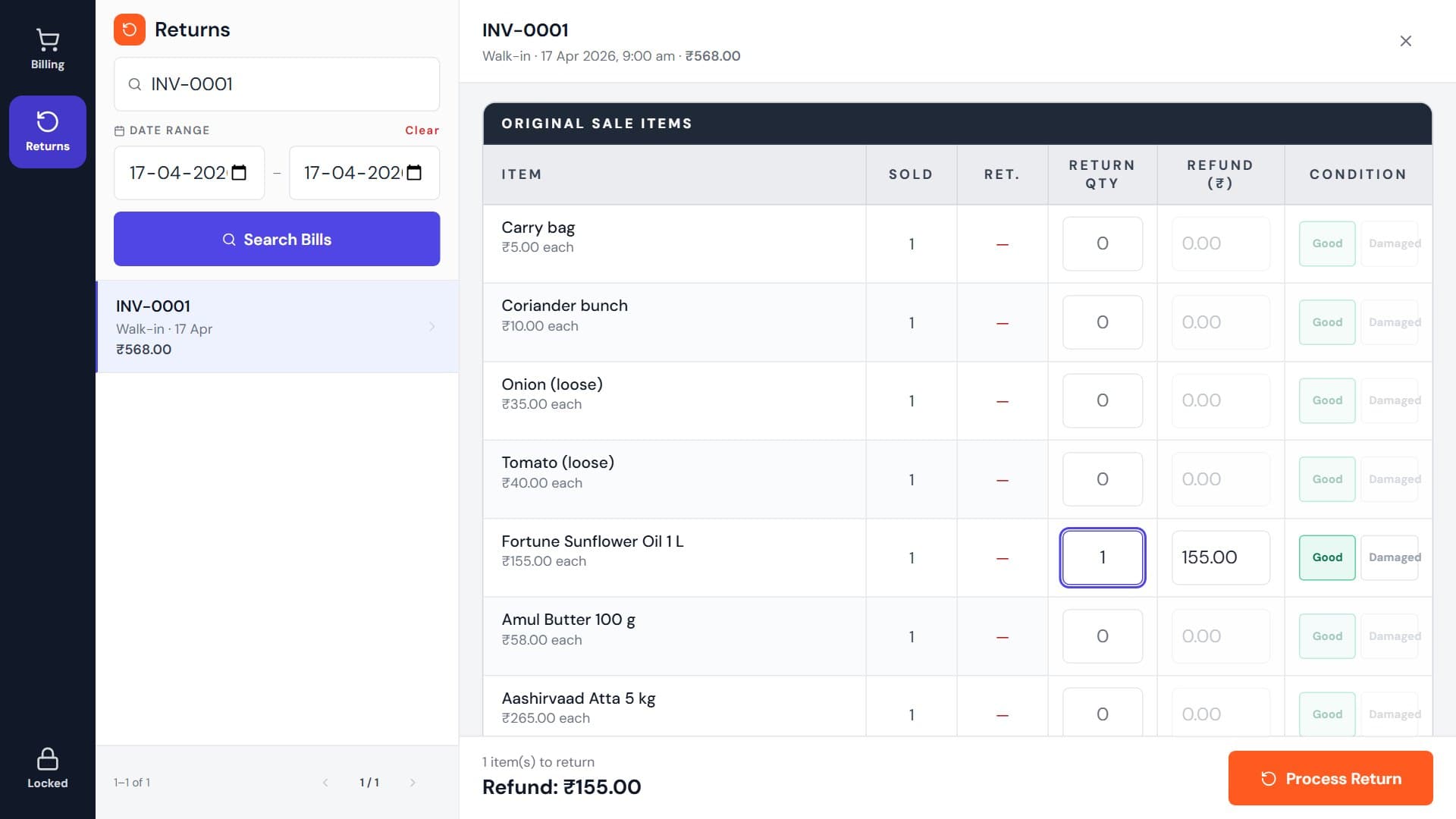
Find the bill by invoice number, barcode or customer, tap the quantity coming back, mark it good or damaged, and refund. The same big targets and keypad as billing, one tap away on a locked till.
Inside the app
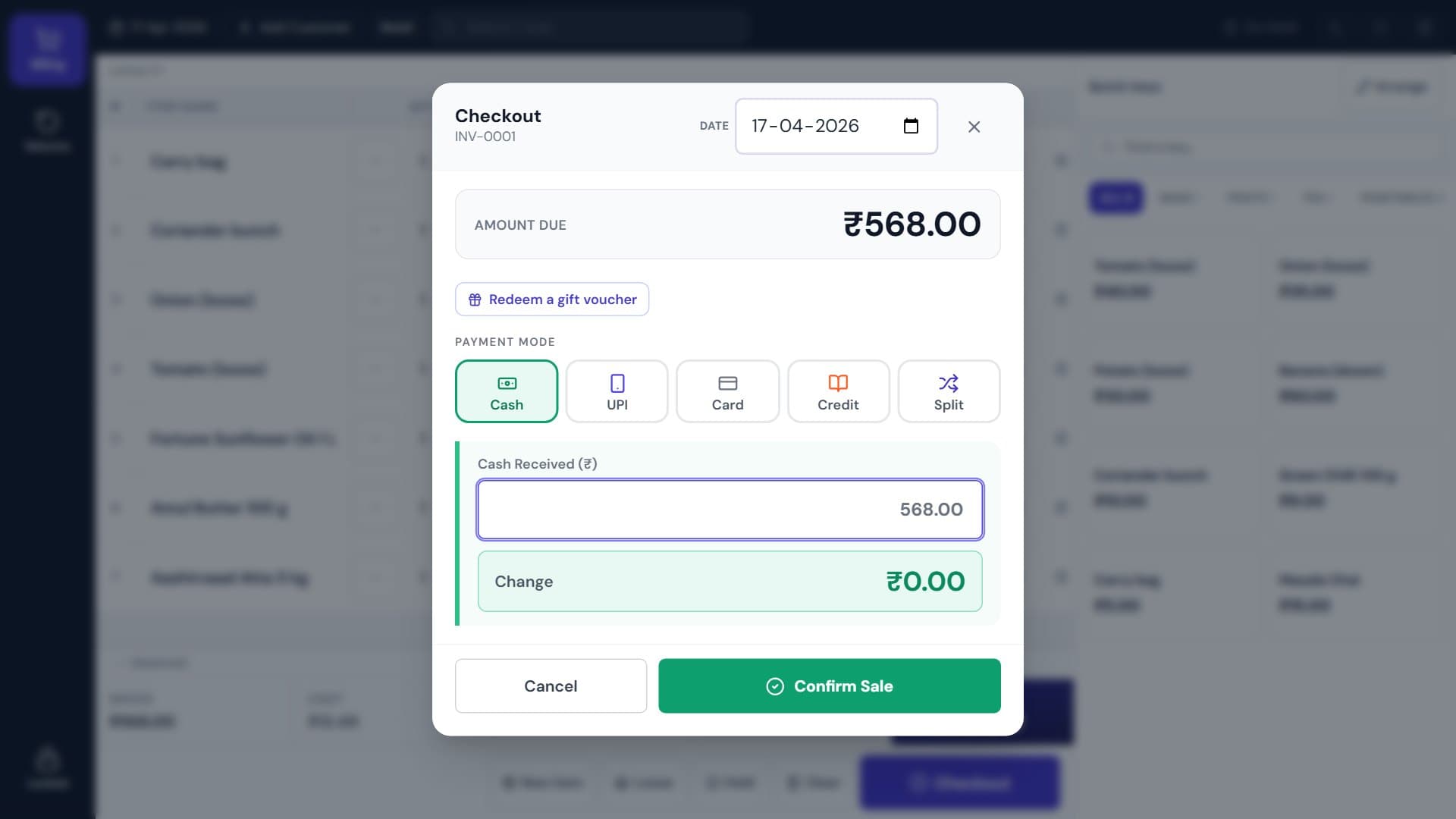
Billing, payment and returns, all by touch
Captured from Orbit on a 1280 × 720 touch terminal.
At the counter
A sale, start to finish, without a keyboard
- 1
Scan or tap
Barcoded items go in with the scanner. Loose items and bags go in from a quick key. Search by name with the on-screen keyboard.
- 2
Change by finger
Tap a quantity, price or discount % and key it on the number pad. MRP, Disc%, GST% and amount stay on every line, as on a desktop till.
- 3
Show the customer
The customer display shows the bill as it grows and the UPI QR when it is time to pay.
- 4
Take payment and print
Tap cash, UPI, card or split, key the amount tendered, and the receipt prints on the thermal printer.
Offline or Cloud
The same touch till, two places for your books
Touch features are identical in both. What you choose is where the shop’s data lives.
Touch POS — Offline Desktop
Single branch · Desktop + owner’s app
One shop at one location. Orbit runs on your own Windows PC and bills with no internet. You follow the shop from the owner’s app on your phone.
- Works with no internet — billing never stops
- Your data stays on your own PC
- One shop, one branch
- Owner’s app: see sales, stock and approvals from anywhere
- More counter PCs in the same shop on a paid plan
Touch POS — Cloud
Multi-branch · Desktop + mobile both
More than one branch, or billing from phones. Your shop runs on Talvera’s servers. Windows PCs and phones bill together, and every branch shares one set of books.
- Bill from Windows PCs and from phones, at the same time
- One shop or many branches, seen together
- One stock, one invoice series, one set of books across devices
- Open the same shop from any of your devices
- Needs an internet connection to bill
Hardware
Keep the terminal you have
Orbit is software only. It runs on the Windows touch hardware Indian shops already buy.
- Windows touch terminal or touch monitor
- Any all-in-one POS terminal or touch monitor running Windows 10 or 11. Windows touch panels often report themselves as a mouse; Orbit’s touch settings notice the touch panel and suggest touch mode.
- Barcode scanner
- USB scanners that type the code work as they are, including on the locked billing screen.
- Thermal receipt printer
- 80 mm and 58 mm receipt printers, chosen per till, with a second printer for kitchen or delivery slips if you need one.
- Weighing scale
- A serial weighing scale for loose goods sold by weight.
- Second screen
- Any monitor turned to face the customer, used as the customer display.
By shop
Touch billing, set up for your trade
Your licence names your trade, and Orbit brings its fields — batch and expiry for a pharmacy, size and colour for clothing, kg and loose weights for a kirana.
Retailers ask us about touch POS
Should I choose offline or cloud for a touch POS?
Choose Offline Desktop if you have one shop and billing must carry on when the internet drops — the shop’s data lives on your own terminal. Choose Cloud if you run more than one branch, or want phones billing beside the touch tills — every device bills into one stock and one set of books, and it needs an internet connection. The touch features are the same in both.
Do I need special touch screen software, or a separate version of Orbit?
No. Touch support is built into Orbit. Turn on touch mode in Settings → Billing & Print → Touch Screen on the till that has a touch screen. The same licence, the same bills and the same reports.
Which touch POS hardware does Orbit run on?
Any Windows 10 or Windows 11 touch terminal, all-in-one POS or touch monitor. USB barcode scanners, thermal receipt printers, serial weighing scales and a second monitor as a customer display work with it. We do not sell hardware, so you can keep the terminal you already have.
How does a cashier enter quantities and prices without a keyboard?
With the on-screen keypad. Tap any box and a number pad appears at the bottom of the screen; switch the till to “Pad + keyboard” for names and product search too. Enter on the pad works like Enter on a keyboard.
How are loose items without a barcode billed on a touch screen?
From quick keys — tiles beside the bill for loose produce, carry bags, services and anything else without a barcode. One tap adds the item. A manager picks and orders the tiles, and every till shows the same set.
Can I stop cashiers from leaving the billing screen?
Yes. “Lock this till to billing” opens the till full screen with no menu — billing and returns only. Anything else needs a manager’s PIN.
Can returns and exchanges be done on the touch till?
Yes. Returns is one tap from billing, including on a locked till. Find the bill by invoice number, barcode or customer, tap the quantity being returned, mark it good or damaged, and refund as cash, store credit or an exchange. Who may process a return is still decided by each user’s rights.
Does the barcode scanner work on the touch till?
Yes. A USB scanner adds the item to the bill wherever the cashier last tapped — the search box, a quantity box with the number pad open, or nowhere at all — including on a till locked to billing. A scan is never typed into a quantity or price.
Is the touch till a cut-down billing screen?
No. It is the same billing screen as the desktop till: free quantity, MRP, discount %, GST %, price and amount on every line, bill discount, hold and recall, loose and weighed items, customers, and cash, UPI, card, credit and split payment. Touch mode changes the size of what you press, not what the till can do.
Is touch billing GST compliant?
Yes. A bill rung up by touch is the same GST tax invoice as any other — HSN, CGST/SGST or IGST, and the GSTR-1 and GSTR-3B reports — because touch changes only how the till is worked, not what it records.
Try it on your own touch terminal
Install Orbit on the counter terminal, turn on touch mode and ring up a bill. 14 days free, no credit card.